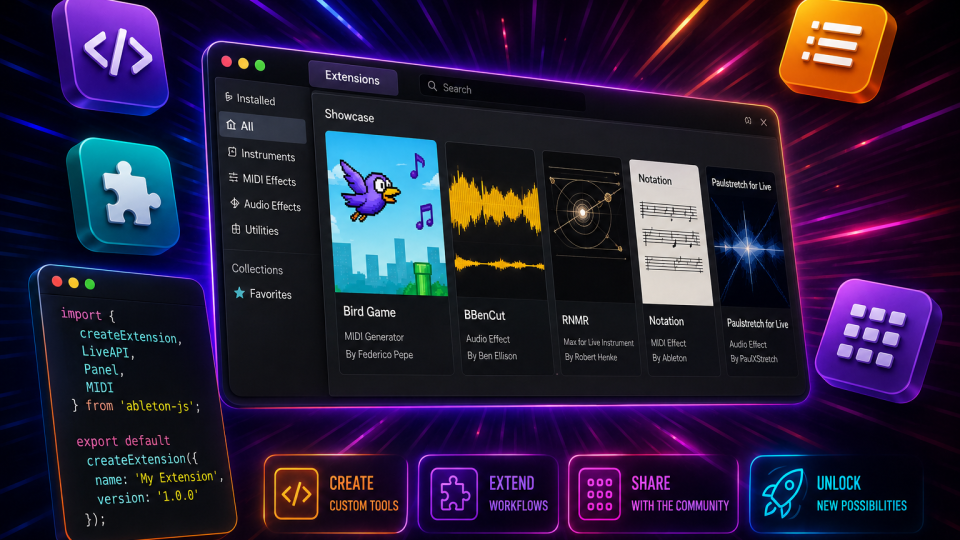
Extensions SDK: Expand, reshape and customise Ableton Live like never before
Ableton Live has had a long tradition of embracing user collaboration and customisation. Now it’s taking this ethos to a whole new level with the introduction of the JavaScript-powered Extensions SDK feature.
Max for Live…but more
Max for Live, first introduced in Ableton Live 8, offered a revolutionary new approach, changing the way many producers interacted with the software. For the first time, users could build their own instruments, audio effects, MIDI processors, sequencers, and custom utilities directly within Live. You could also download Max for Live instruments and tools that other users had created. It opened up a world of possibilities for musicians, sound designers, and developers alike.
The new Extensions feature takes customisation in a slightly different direction. While Max for Live excels at creating plugin-style instruments, effects, and signal-processing tools, Extensions are designed to interact with the Live Set itself. Using JavaScript, you can create tools that analyse, modify, and automate elements of a project, affecting its structure and workflow rather than the audio engine.
Perhaps the most exciting aspect of the Extensions SDK is its accessibility. Simply tell your AI assistant what you need, and it will help you generate the JavaScript code needed to make your idea a reality. This puts highly personalised production workflows within reach of almost any Ableton user for the first time.
What could you use Extensions SDK for?
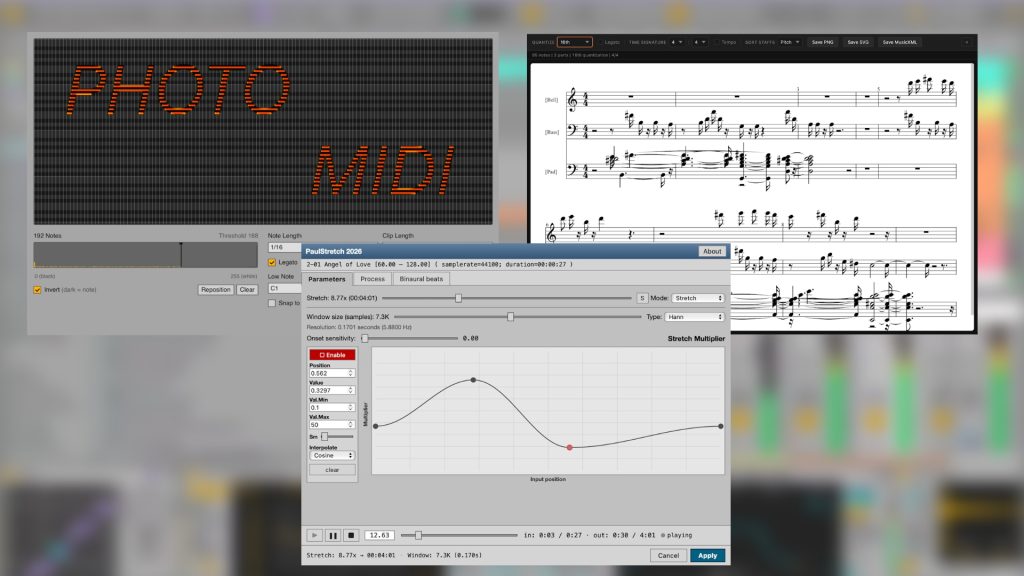
The real power of Extensions becomes clear when you start thinking about all the repetitive tasks that you find yourself doing when producing music. Because everyone’s workflows are different, everyone will have things that they wish they could improve to help the way they work.
For example imagine being able to:
- Build workflow shortcuts tailored to your specific production process.
- Automatically rename or re colour clips and tracks based on your naming structures.
- Analyse MIDI clips and suggest harmonic changes and new chord variations.
- Create custom composition tools that automatically generate musical ideas.
- Batch edit multiple clips across an entire project.
- Convert MIDI data into notation for scoring and transcription.
- Integrate Ableton Live with external applications and online services.
Unlike a traditional plugin, Extensions can work across entire projects rather than just a single track. This means they can analyse your full projects and perform large-scale organisational and creative tasks that would previously require significant manual effort. This makes the Extensions SDK ideal for producers working on large, complex sessions. Creating custom extensions that apply to your specific way of working means less time spent managing projects and more time making music.
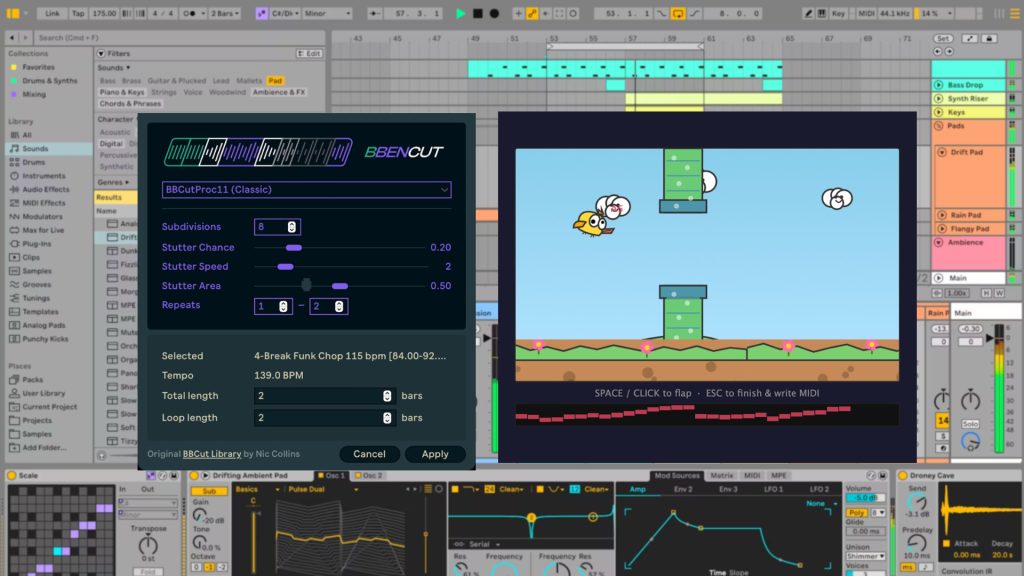
The possibilities aren’t limited to strictly music production applications. Some of Ableton’s showcase Extensions already blur the line between creative tools and entertainment. One of the most out-there examples of this is Bird Game, an Extension that lets you control a flying bird whose wing flaps generate MIDI notes. It may be just a bit of fun, but it does demonstrate how open and flexible the new Extensions platform can be.
How to use Extensions SDK
So let’s see how this functions within the Live ecosystem.
Note*: at the time of writing, this new feature is only available in Live 12 Suite Beta, version 12.4.5 or later.
1. Install the Latest Live Beta
Download and install the latest Live beta version that includes Extensions SDK support.
2. Explore the existing Extensions
Live has included a few of their own extensions to get you started and familiarised. So before creating your own tools, spend some time experimenting with the example Extensions provided by Ableton and the community. These should give you an idea of where the extensions are held (generally found in context menus) and the kinds of workflows that are possible. They should also help inspire your own ideas.
3. Adding Extensions to Live
Of course, you don’t need to build your own Extensions from scratch to benefit from the new SDK. Just as the Max for Live community has created and shared thousands of devices over the years, developers and users will no doubt be sharing unique and useful Extensions with the wider Ableton community. Here’s how you can download and add an extension to Live.
- Download the Extension from a developer.
- Open Live 12.4.5 Suite Beta.
- Go to Settings/Preferences → Extensions.
- Install or add the Extension there.
- Once installed, right-click on a relevant item in your Set (track, clip, MIDI clip, arrangement selection, etc.).
- The Extension will appear in the context menu whenever it applies to that object.
After you select the Extension, Live opens a small parameter window where you can configure options before running it.
4. Solving your own problems
To start with, you need to identify something that you want to solve. A good example would be a repetitive task. Maybe you spend too much time organising samples. Perhaps you want to chop audio into specific segments and colour code them,, i.e 4 bar segments. Or maybe you have a specific production technique that requires dozens of repetitive clicks.
Identifying a genuine workflow bottleneck is the perfect starting point.
5. Use AI to Generate Code
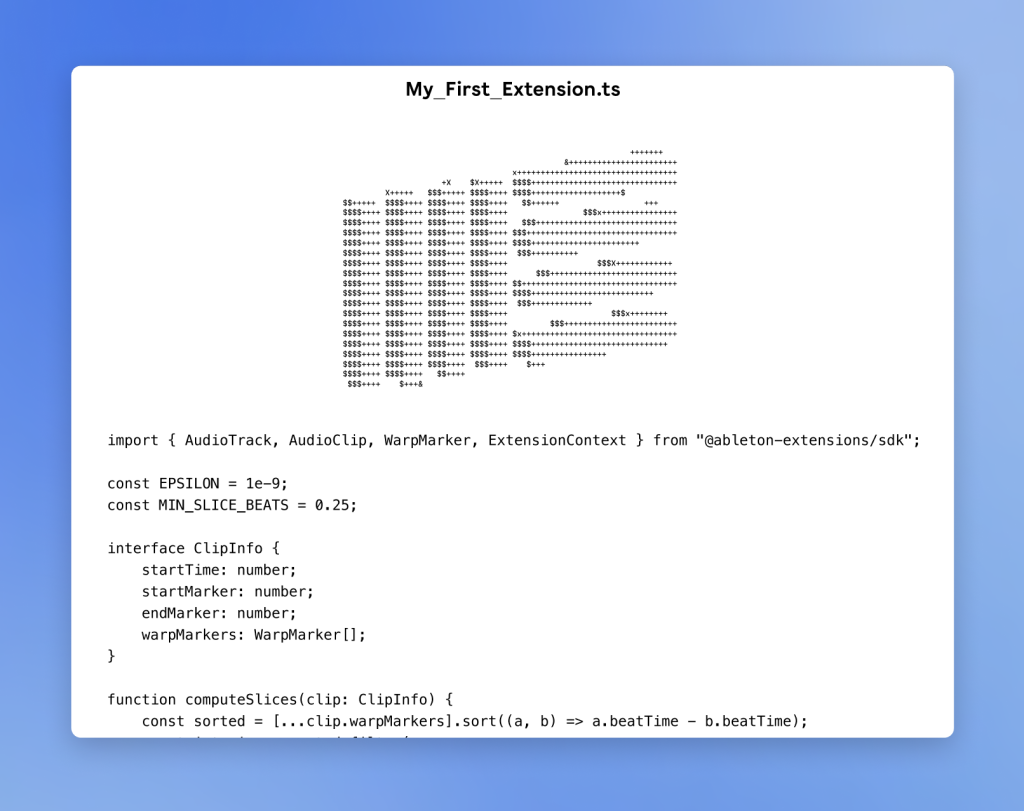
Once you have an idea, explain your goal to an AI coding assistant. For example:
“Create an Ableton Extension that renames all clips in selected tracks based on the track name and the clip’s position.”
You could even simply describe an issue you’re having or workflow frustration and ask the AI assistant to formulate a workable solution that could be applied to Live’s new Extension tool. The AI can generate a JavaScript that will act as a starting point that can be tested and refined within the Extensions environment.
6. Test and Refine
Like any creative tool, the best results come through experimentation and iteration. Start with something small and gradually add functionality, testing fully as you go. And remember, it may take a little up-front time and effort to create a workable extension, but once installed, even a simple extension can save significant amounts of time when used repeatedly.
Summary
The Extensions SDK represents a significant development in Ableton Live’s evolution and feels like a natural progression of the hugely popular Max for Live facility. In the video below, the Ableton representative acknowledges that users had already been finding ways to interact with Live’s API and create custom workflow tools. Rather cleverly, instead of trying to restrict this creativity, they have embraced it, opening the door to the wider Ableton community.
What makes this particularly exciting is the rise of AI coding tools that can easily turn your ideas into JavaScript code. This development has dramatically lowered the barrier to creating custom Extensions. And for those who don’t want to build their own tools, the growing community will undoubtedly begin sharing useful Extensions in much the same way Max for Live devices are shared today.
Ultimately, the Extensions SDK sets the agenda for a new generation of productivity tools, creative assistants, and personalised workflows. It’s an exciting glimpse into a future where music software adapts to the way each producer likes to create. For Ableton users, that’s a very exciting prospect indeed.
And if you are looking for Beats or Samples for your next project then RouteNote Create has you covered.
Sign-up now and take your music to the next level